aplus bg

Safari Video Playback

Your website choice requests automatic playback. Safari also needs to allow automatic playback with sound for the website.
In this guide, thewebsite.com means the website you are visiting. Use its actual address in Safari.
  1. Open the website in Safari on your Mac.
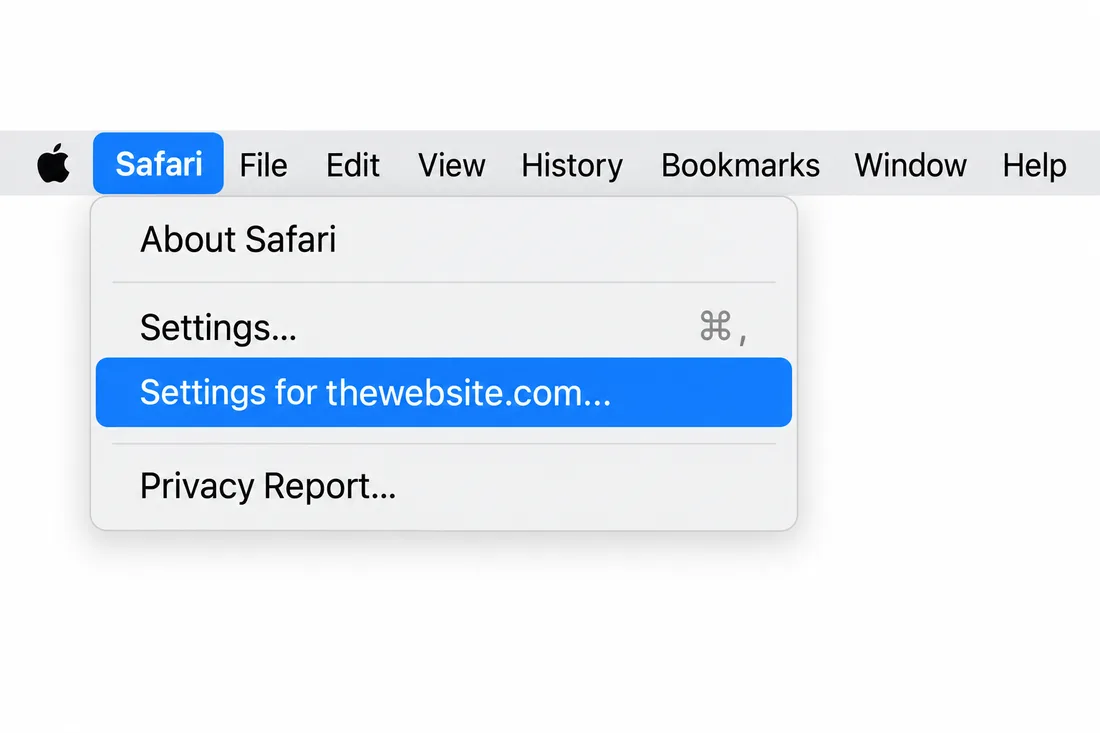
  2. In the menu bar, choose Safari → Settings for This Website…. Safari may show the website address in this menu item.
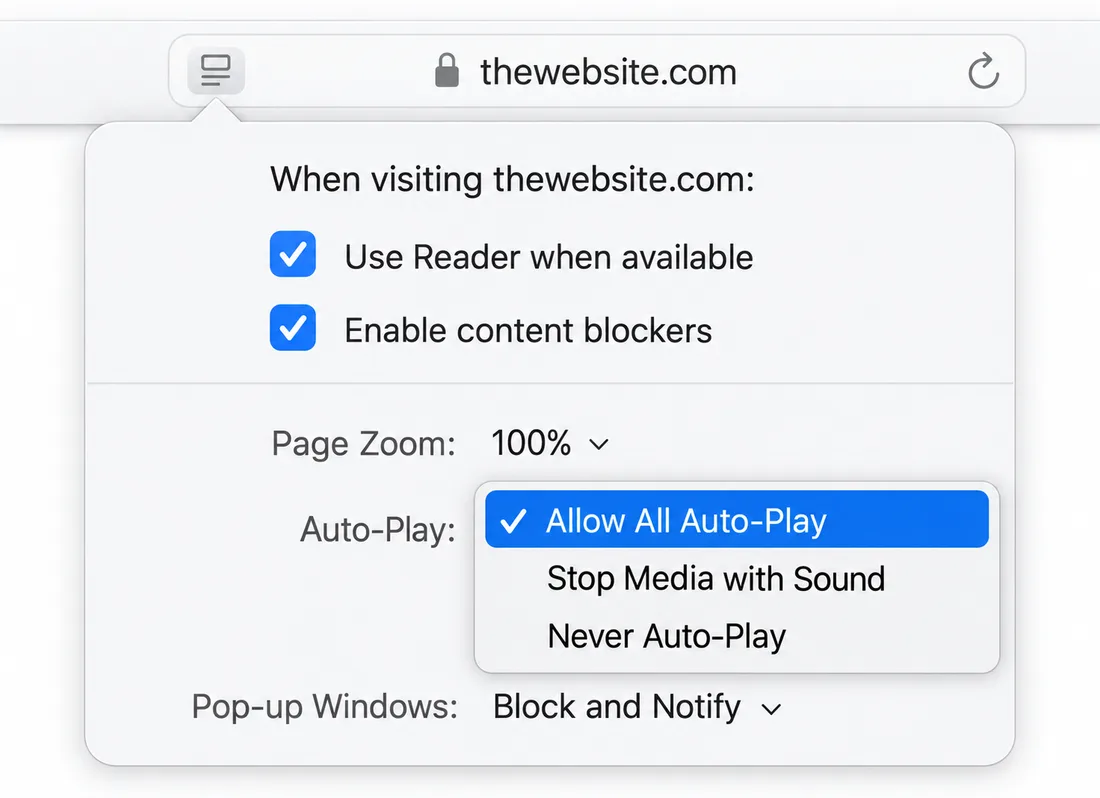
  3. Beside Auto-Play, select Allow All Auto-Play.
  4. Click outside the settings panel, then reload the video page.
Generic Safari menu example with Settings for thewebsite.com selected
Step 2: open settings for the current website. Illustrated screenshot example.
Generic Safari website settings example for thewebsite.com, showing Allow All Auto-Play in the Auto-Play menu
Illustrated screenshot example. Select Allow All Auto-Play for your current website. Safari’s appearance may vary by version.

Another Way to Find This Setting

Choose Safari → Settings → Websites → Auto-Play, find the current website, and choose Allow All Auto-Play.

Check the Website’s Choices Too

Open Cookies & choices. Enable Allow embedded YouTube videos and Automatically play selected videos, then save. Uploaded videos do not require YouTube permission.

If the Video Still Waits for a Click

Use Play with sound. Safari, a content blocker, or the video provider may still require interaction. Check your device volume and that the tab is not muted. These Safari instructions apply to Mac; they do not change the browser inside another app or Safari on iPhone or iPad.